Targeting Announcements by Role or Location
Last updated: October 19, 2026
This article explains how to use announcement targeting in Xenia Nexus to ensure messages reach the appropriate recipients. You will learn how to configure recipient options, select roles and locations, and verify your targeting before publishing.
1. Why Targeting Matters
An announcement sent to everyone in a 50-location organization reaches hundreds of users — cashiers, cooks, district managers, HR teams, maintenance staff. Most announcements are relevant to a subset of those people, not all of them.
Sending a store-level SOP update to district managers clutters their notification feed. Sending a corporate policy change only to store managers misses the frontline employees who need to follow it. Targeting lets you match the announcement to the right audience.
2. Targeting Options
When configuring an announcement, you define the audience using one or more of these dimensions:
By Role: Select one or more roles. All users assigned to that role across your workspace receive the announcement. Use this when the update is relevant to a position type regardless of location — "All Store Managers" or "All Cashiers."
By Location: Select one or more specific locations, or select all locations. All users with membership at those locations receive the announcement — regardless of their role. Use this when the announcement is location-specific: "All users at Stores 101–105 only."
By Role AND Location (intersection): The most precise targeting. Example: "Store Manager role at Southeast Region locations only." Only users in the Store Manager role who have location membership at Southeast Region stores receive the announcement. Combines role-type precision with geographic or structural scope.
By Team: Select a configured team. All team members receive the announcement regardless of location. Use for cross-functional team communications.
By Specific Users: Select individual named users. Best for targeted communications to a small group where role or location filtering would be too broad.
All Users (workspace-wide): The announcement goes to every user in the workspace. Use sparingly — for organization-wide alerts, major policy changes, or announcements where every single user genuinely needs to see it.
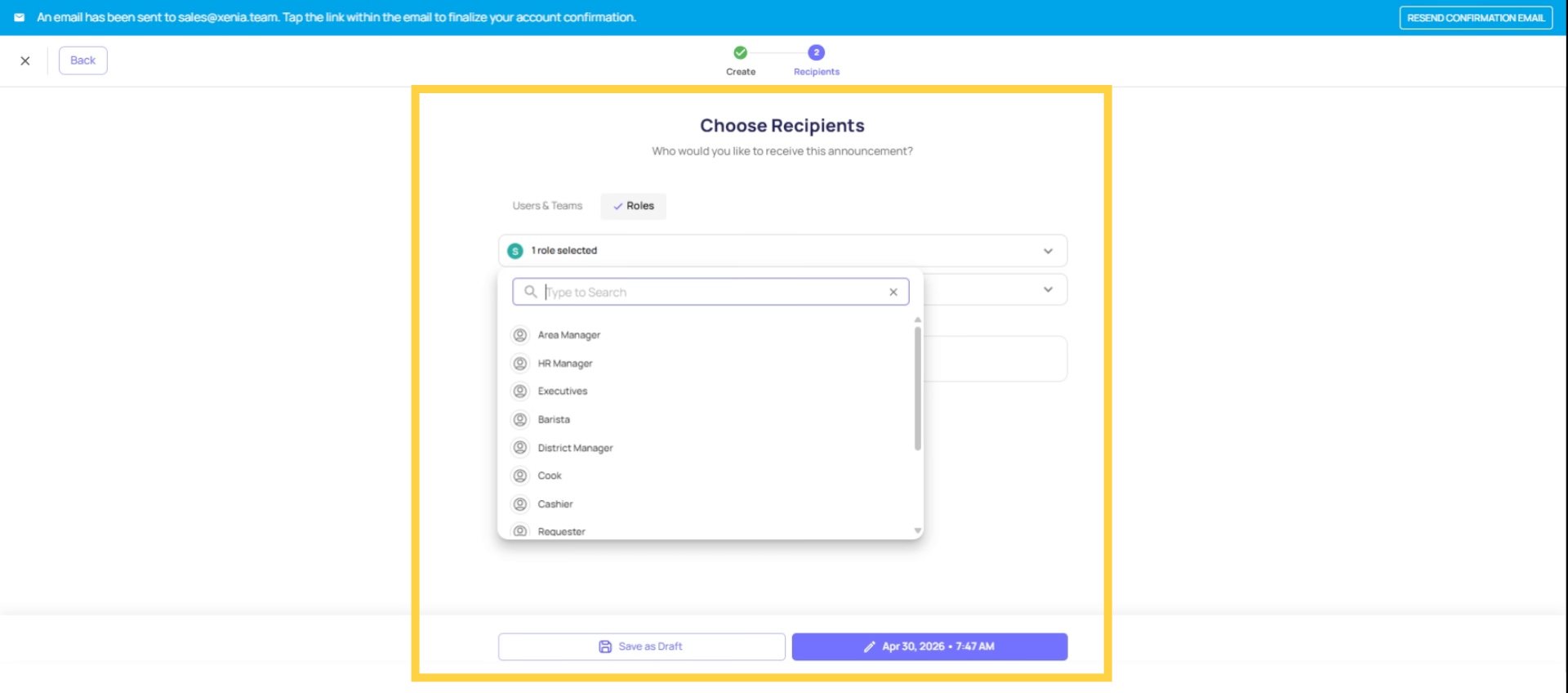
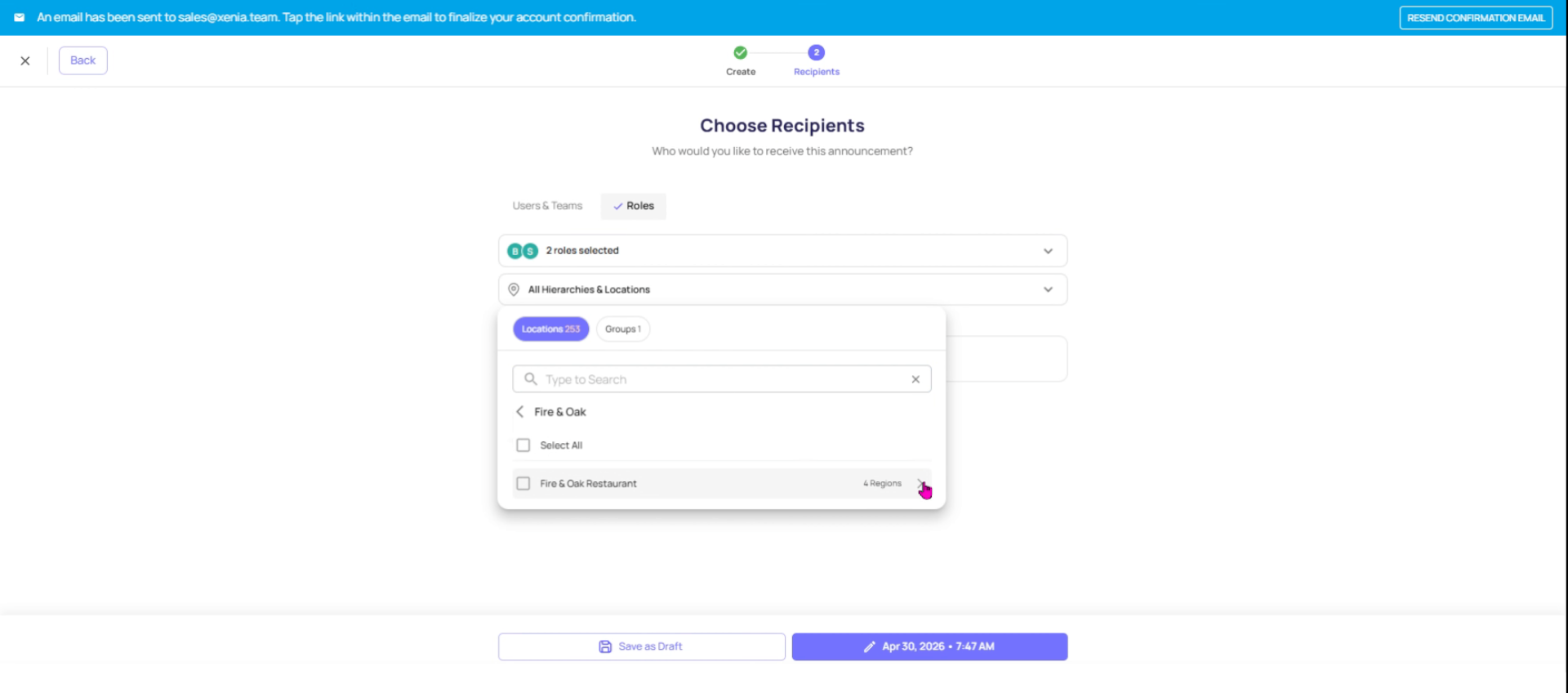
How to Configure Targeting
During announcement creation (or before publishing):
Find the Recipients or Target Audience section
Select your targeting method:
Choose roles, locations, teams, or specific users
Combine filters as needed (role + location for intersection targeting)
Review the recipient count before publishing — most interfaces show how many users will receive this announcement based on your selections
Publish
4. Targeting Scenarios
Announcement | Right Target |
New national food safety SOP | All users OR Cashiers + Kitchen roles at all locations |
LTO launch instructions for front-of-house | Cashier role at all locations |
Store 5 closing early on Friday | All users at Store 5 only |
District manager reporting requirement change | District Manager role |
HR policy update requiring signature | All employees at all locations |
Specific city's new parking procedure | Store Manager role at all stores in that city |
5. Recipients Can't See Each Other
Each recipient receives the announcement as an individual notification. They don't see who else received it. The announcement list in Communications shows the admin the full recipient scope; individual recipients only see the announcement itself.
6. Editing Recipients After Publishing
If an announcement has been published and you need to add recipients — a location was missed, a role was omitted — check whether your configuration supports editing the recipient list after publication. If not, the cleanest option is to publish a new announcement with the corrected targeting, and note in the body that it's a reissue of the original.
This article explained how to configure precise announcement targeting by roles and locations in Xenia Nexus. You learned to select recipients, verify counts, and schedule announcements to ensure the right people receive the right information. For more details, see related articles on announcement management and user roles.
Need Help?
Reach out to our Support Team at Support@xenia.team