Chats: Direct & Group Messaging
Last updated: October 19, 2026
1. What Chats Is
Chats is Xenia's internal messaging layer. It gives your team direct and group messaging inside the same app they're already using for tasks and checklists — so operational communication stays in one place rather than spilling into WhatsApp, SMS, or email threads that no one can track.
The main use cases:
- A store manager asks a district manager a quick clarification question
- A maintenance crew has a group chat to coordinate across locations
- A shift lead loops in a teammate on a task that needs help
- A kitchen team has a shared group for food safety questions
- Field teams communicate from the floor without switching apps
Chats is not for broadcast communications — those belong in Announcements (where you track acknowledgment). Chats is for real conversations: back-and-forth, specific topics, immediate context.
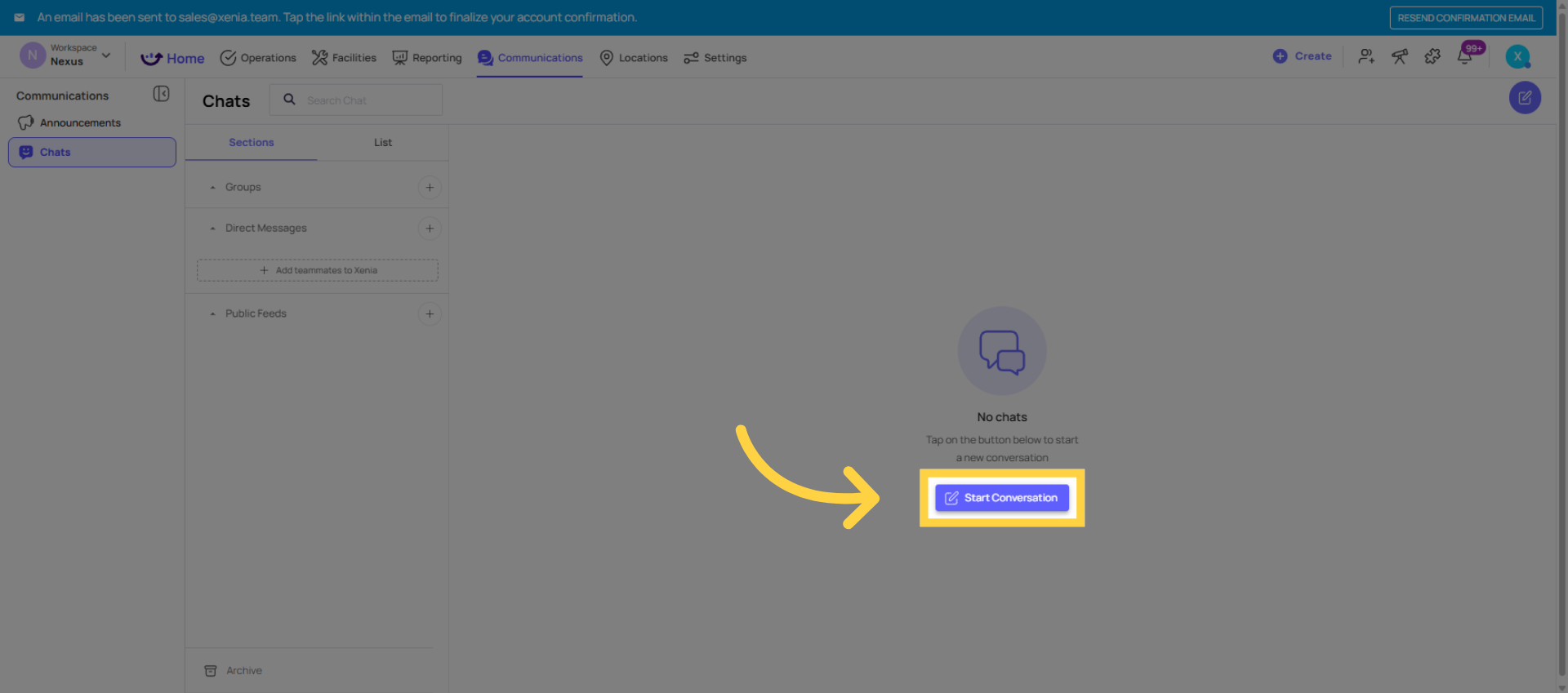
2. Where Chats Lives
Web app: Communications tab in the top navigation → Chats section. Shows your active conversations listed in the left panel. Click any conversation to open it.
Mobile app: Comms tab (or Communications tab) in the bottom navigation — the fourth tab on most configurations. All conversations are listed here, with unread message indicators. Most frontline teams access chats from mobile during their shift.
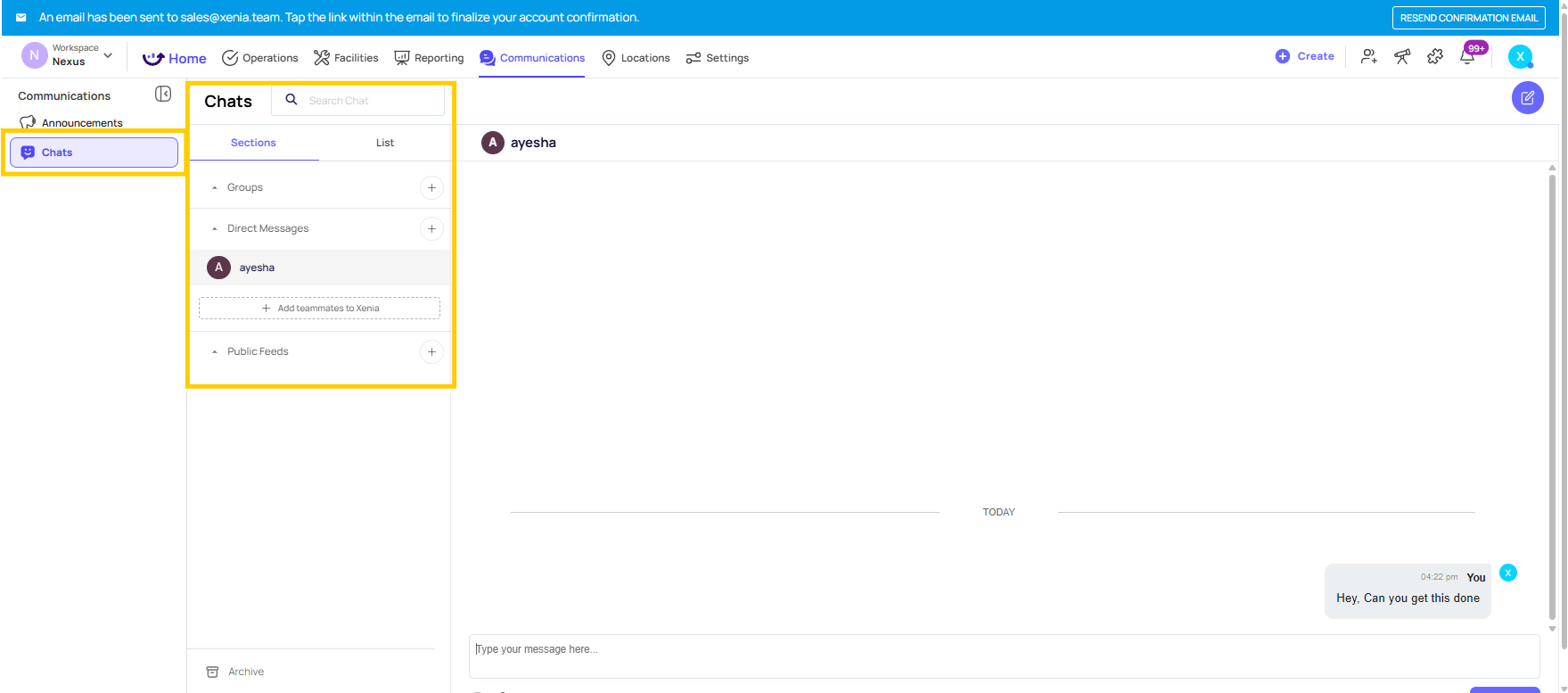
3. Direct Messages
A direct message is a one-on-one conversation between two users.
To start a direct message:
- Go to Communications → Chats
- Click + New Message or the compose icon
- Search for the person's name or role
- Start typing
The conversation is private — only the two participants can see it. Messages are delivered as push notifications to the recipient (based on their notification preferences).

4. Group Messages
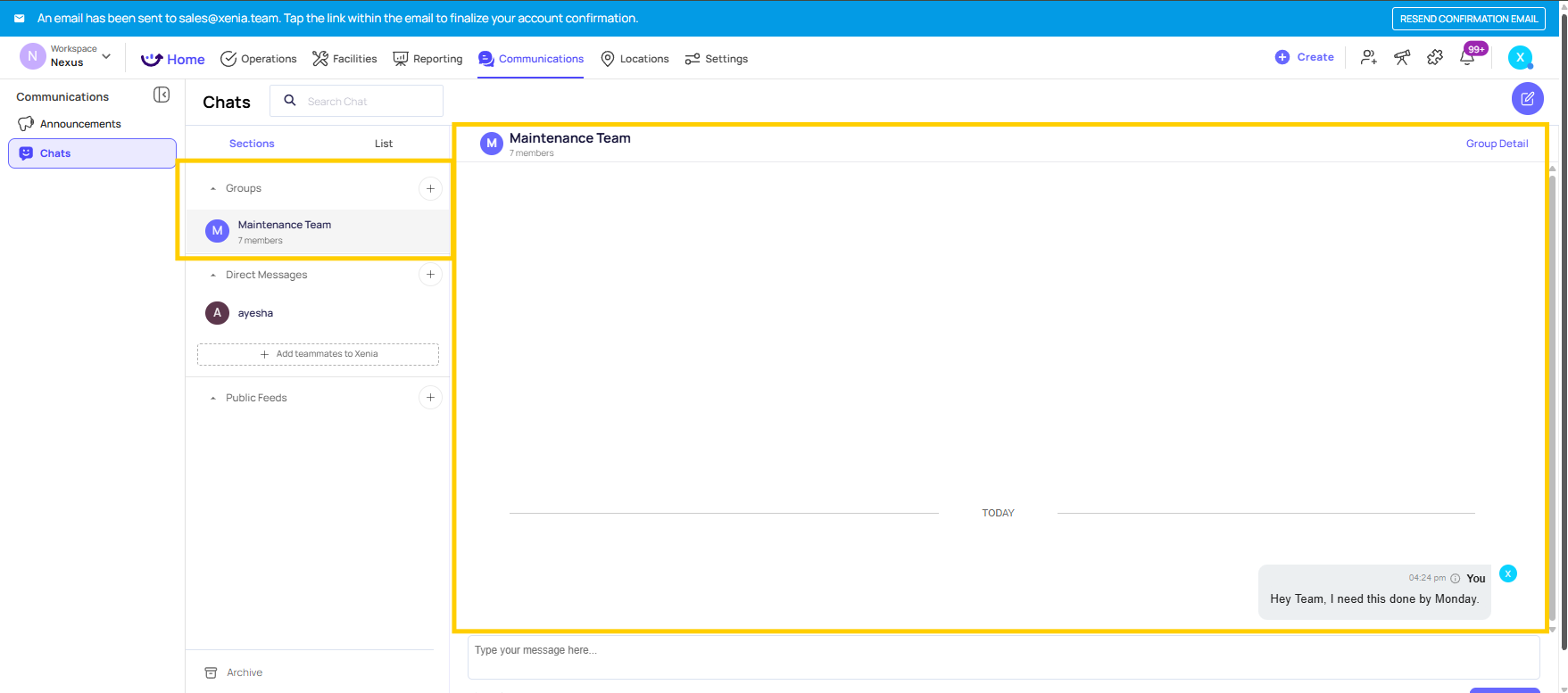
A group message is a conversation between three or more users — a team, a crew, or a location-based group.
To create a group:
- Communications → Chats → + New Message
- Search for and add multiple participants
- Give the group a name (e.g., "Kitchen Team — Store 12," "District 3 Managers")
- Start the conversation
Group chats persist as a shared space — messages stay visible to all participants. New participants added later can see the message history from when they were added.
Common group configurations:
- One group per location (all employees at Store 5)
- One group per team type (all maintenance technicians)
- One group per management tier (all district managers)
- One group per shift (opening crew, closing crew)
Chats vs. Announcements — Which to Use
| Use Case | Use Chats | Use Announcements |
| Quick back-and-forth question | ✅ | — |
| Coordinating a shift handoff | ✅ | — |
| New SOP that needs acknowledgment | — | ✅ |
| Safety alert to all locations | — | ✅ |
| Looping someone in on a task | ✅ | — |
| Policy change that needs a read receipt | — | ✅ |
| Team asking questions about today's special | ✅ | — |
Chat Permissions
Chat access is controlled by role permissions. The relevant permission is typically found in Settings → Roles → Communications or Chat section. Admins can:
- Enable or disable chat entirely for a role
- Restrict who the role can message (all users vs. within their location only)
- Control group chat creation permissions
For frontline roles on shared tablets, it may be appropriate to restrict or disable personal chat access — communications can happen through the task comment layer instead.
Need Help?
Reach out to our Support Team at Support@xenia.team