3. How to Invite Users to Xenia
Last updated: October 19, 2026
- Navigate to Settings -> Users & Teams

- Click on the "+ Add User" button

- Invite your User by Email, Phone Number or WhatsApp

- Provide Full Name, Email/Phone Number, User Type (Role), and Location Membership
- You can also invite multiple Users in one go by selecting the "+ Add another user" button
- Once finished, click the "Send Invite" button
- Refresh your screen (Ctrl + R, CMD + R) and you will see the newly invited User(s) on your Users & Teams dashboard.
Set Optional Password for User
- You can also set an Optional Password for the User which automatically activates the User and emails them their Username + Password credentials

- (Shown below) Email received by invited User with an "Accept Invite" button that will direct User to the Web/Mobile App. If User is invited with a default password already set, this password will be displayed in the body of the email.

Learn More About Roles
- To learn more about what Permissions are available to each User Type/Role by Feature, please navigate to the "Roles" tab, and click into any Role.
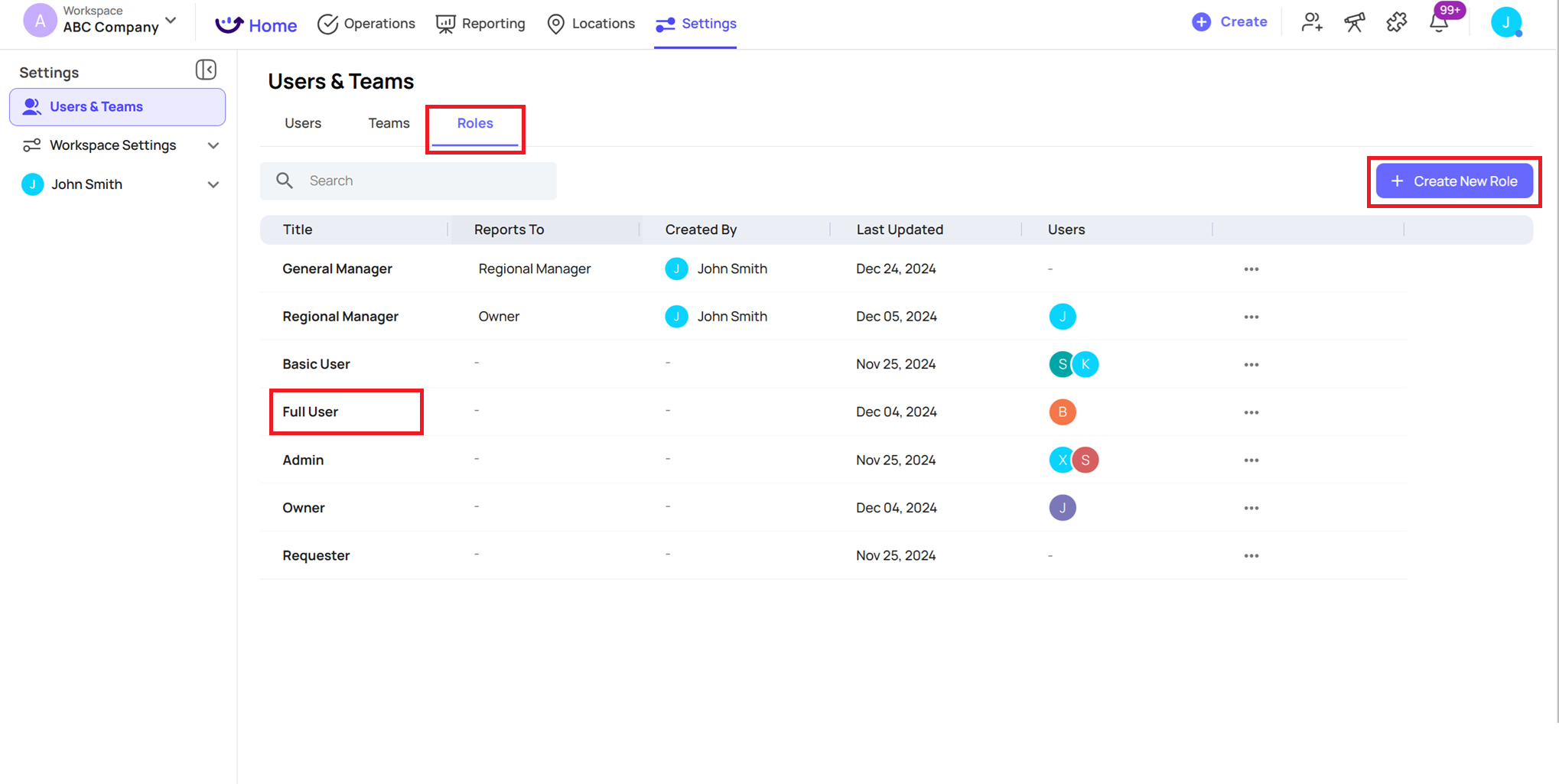
- 'Full User' Permissions Details Example:
- Note: If you have the "Custom Roles" Add-On enabled, you can customize the permissions for existing Roles + Create your own NEW Roles.