How to Setup Custom Dashboards in Xenia
Last updated: October 19, 2026
Custom dashboards in Xenia allow you to visualise operational data, track key metrics, and manage performance across teams and locations. This guide walks you through creating a dashboard, adding widgets, and sharing it with your team.
Step 1: Access the Reporting Section
- Log in to your Xenia account.
- Click Reporting in the main navigation menu.
- Under Custom Dashboard Click View Dashboard.
Tip: Use a descriptive name for your dashboard so others know its purpose.

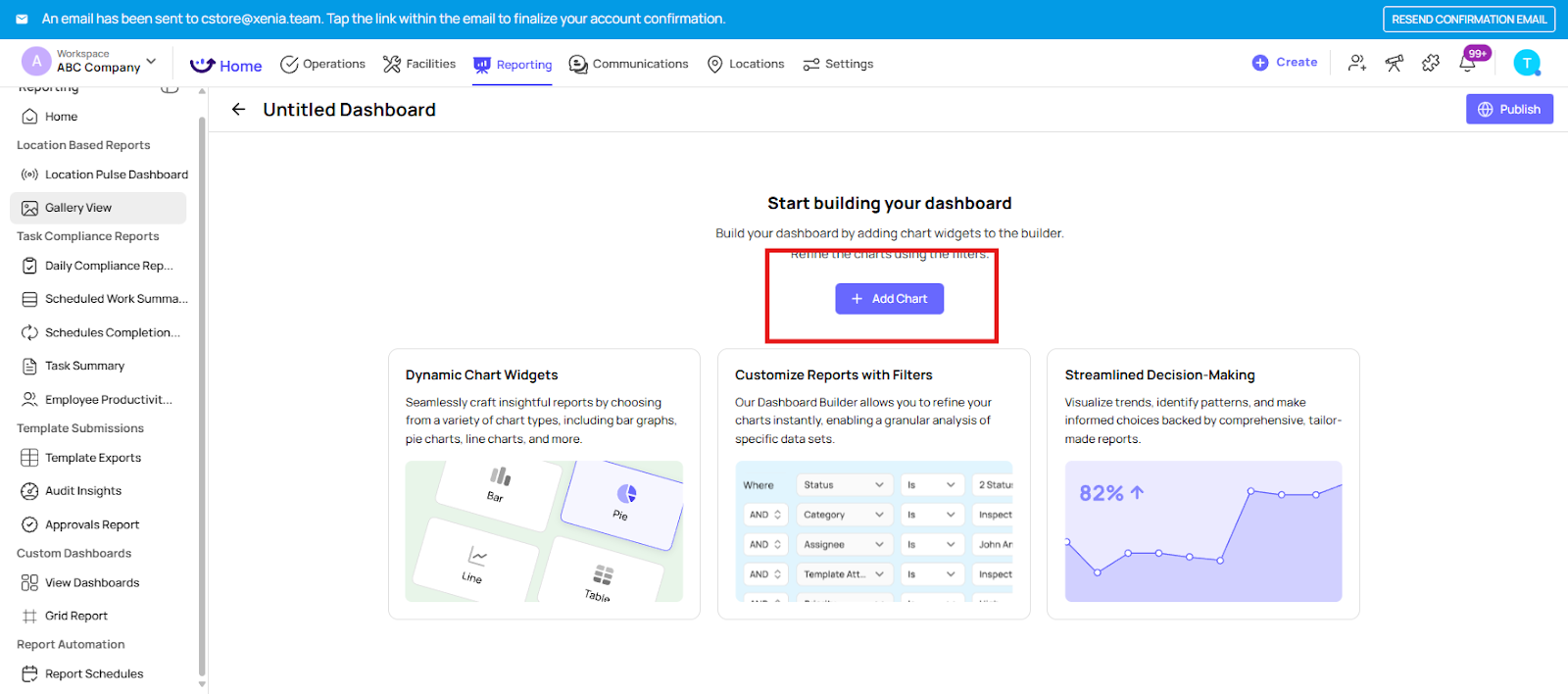
Step 2: Add Chart
- Click Add Chart.
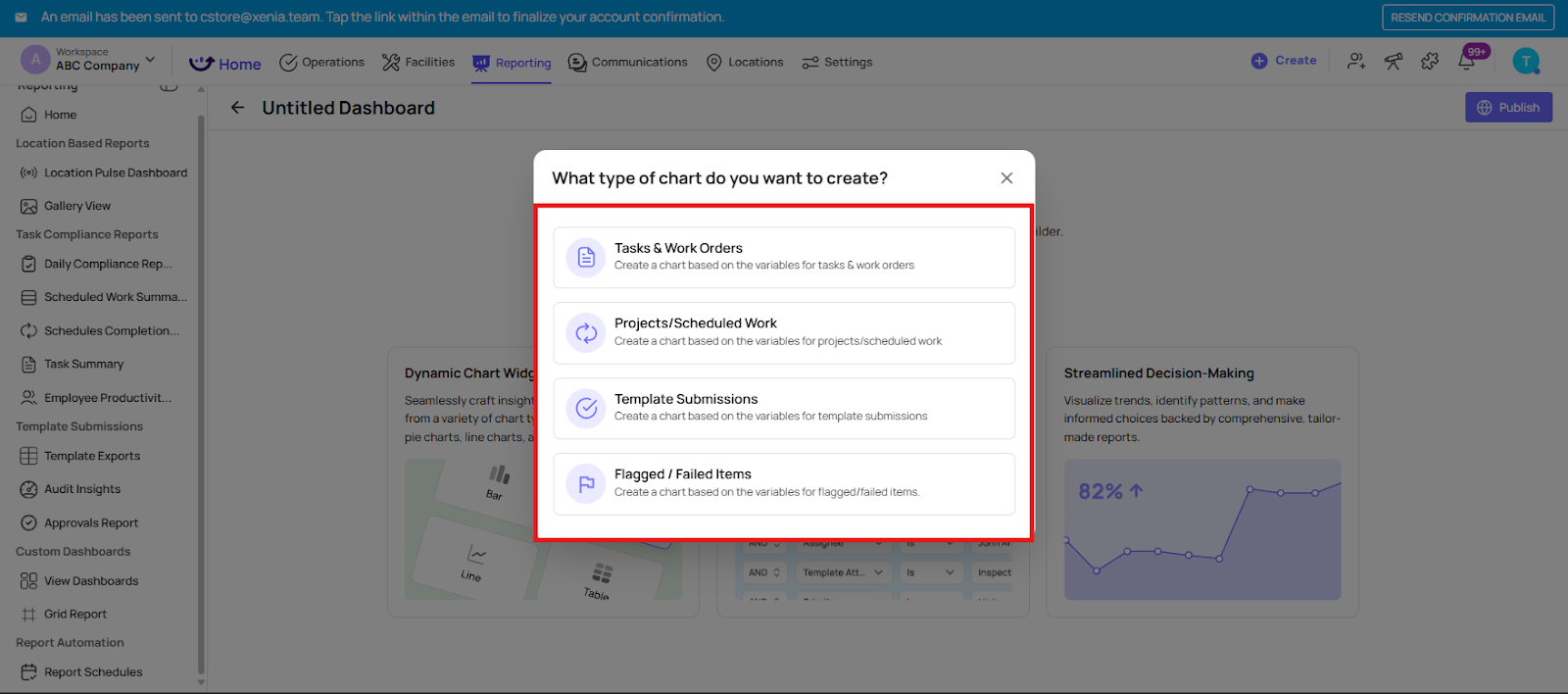
- Choose the Chart type:
- Task and Work Orders
- Projects/Scheduled Work
- Template Submissions
- Flagged / Failed Items
- Apply filters: location, team, date range, etc.
Tip: Use multiple widgets to track different KPIs on a single dashboard.
Step 3: Create a Chart
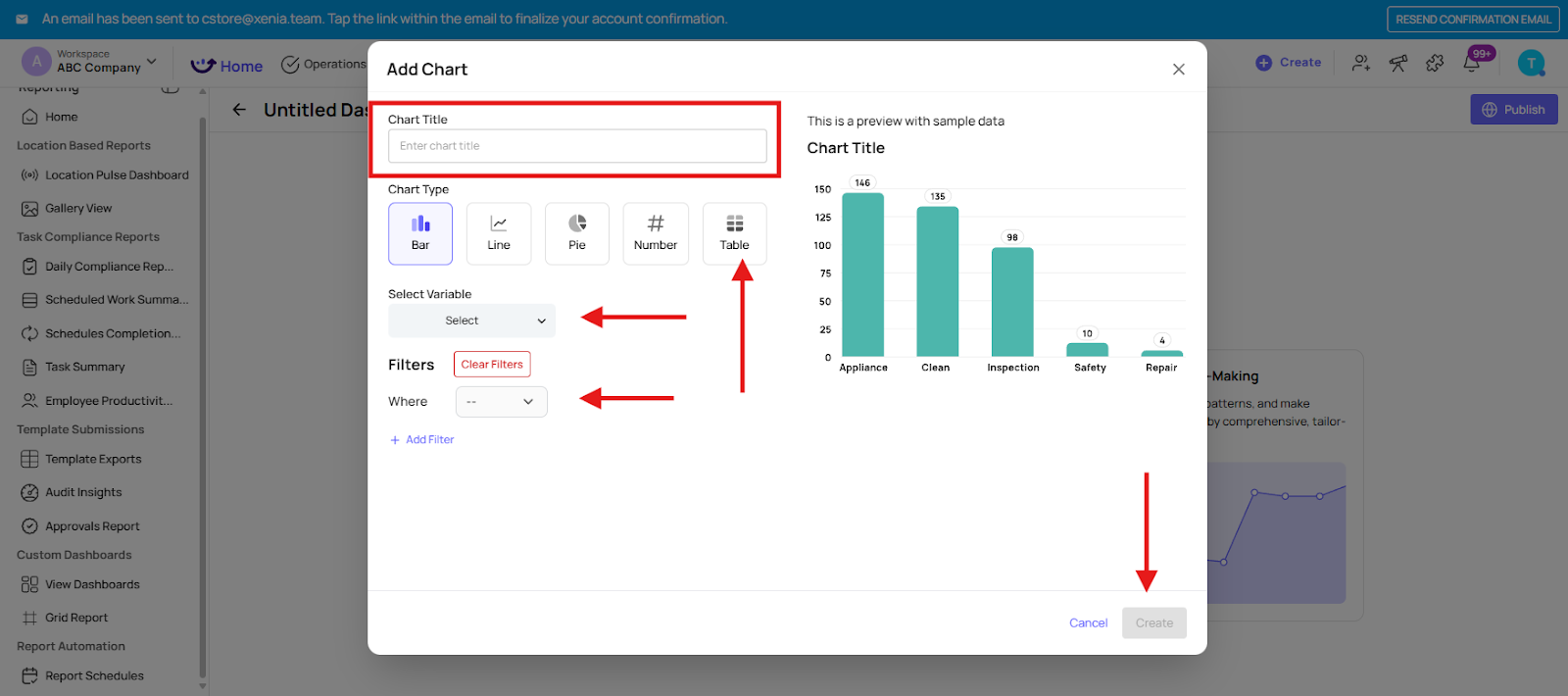
- Name the Chart Title
- Select Chart Type (Bar, Line, Pie, Number, Table)
- Select Variable
- Apply filters: location, team, date range, etc.
Tip: Use multiple widgets to track different KPIs on a single dashboard.
Step 4: Arrange and Customise
- Drag and drop widgets to adjust layout.
- Resize widgets to highlight important metrics.
- Click Publish after finalising.
Tip: Organise by priority—top KPIs at the top for quick insights.
Step 5: Share Dashboards
- Click Access.
- Select users, roles or teams to share with.
- Assign permissions: view-only or edit access.
Tip: Regularly review shared access to ensure sensitive metrics are only seen by authorised users.

Watch the Video Guide below for Configuration:
Troubleshooting
- Widgets not displaying data? Check filters and data sources.
- Dashboard layout not saving? Ensure you click Save Layout before exiting.
Need Help?
For assistance please reach out to us at support@xenia.team