How to Change Timezone Settings in Xenia
Last updated: October 19, 2026
Timezone Settings - What You Need to Know
Your timezone setting ensures tasks and checklists appear at the correct local time, whether you're managing one location or multiple sites across different time zones. This means when you schedule a task/checklist/project for 9 AM, it will show up at 9 AM in each location's local time.
To update your timezone, follow our video guides below.
Xenia maintains 3 timezones for flexibility:
Workspace Timezone
User Account Timezone
Location Timezone
User Account Timezone
Xenia automatically detects the User's timezone based on the device location and will prompt you to update your timezone if it changes (due to relocation, traveling, etc.)
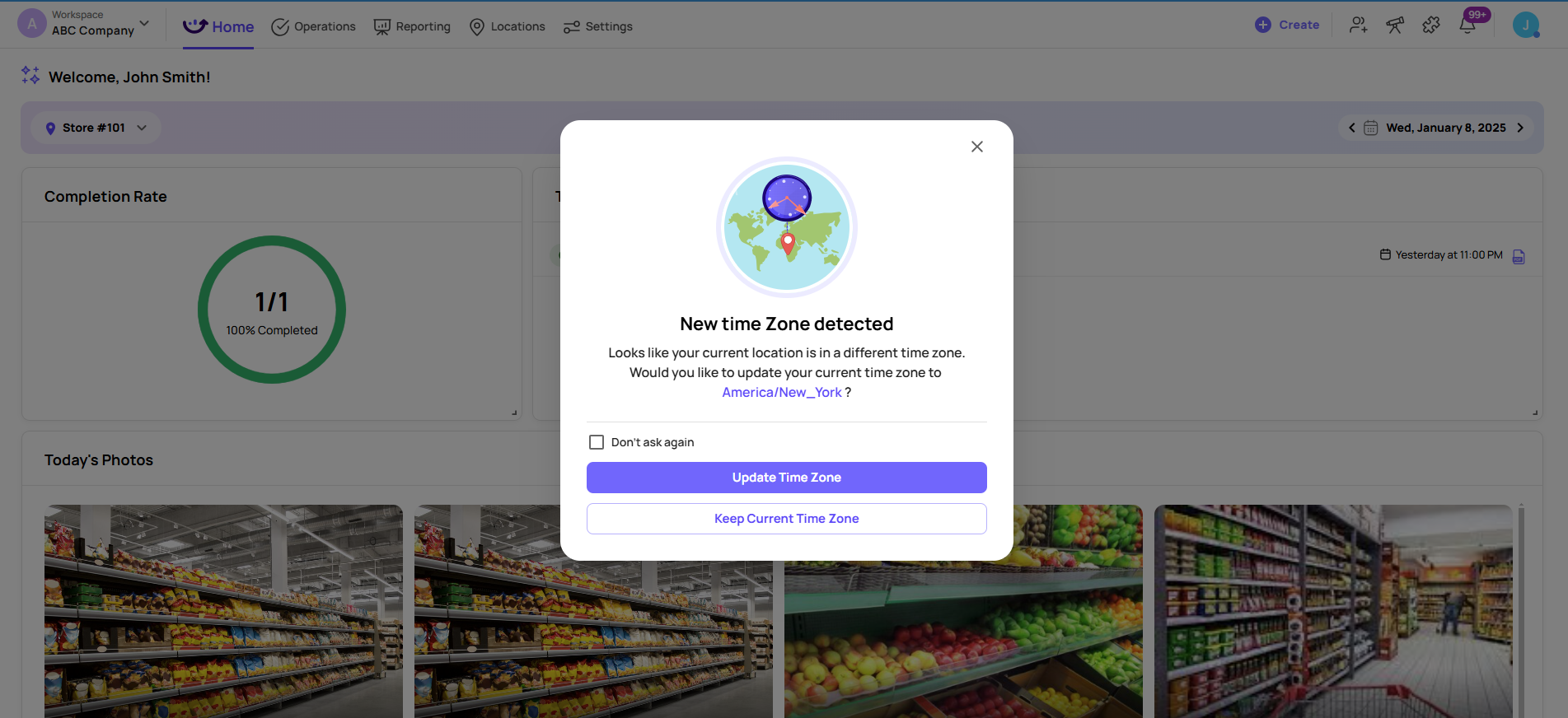
You can also manually change your User Account's timezone by following along with this video guide here:
Workspace Timezone
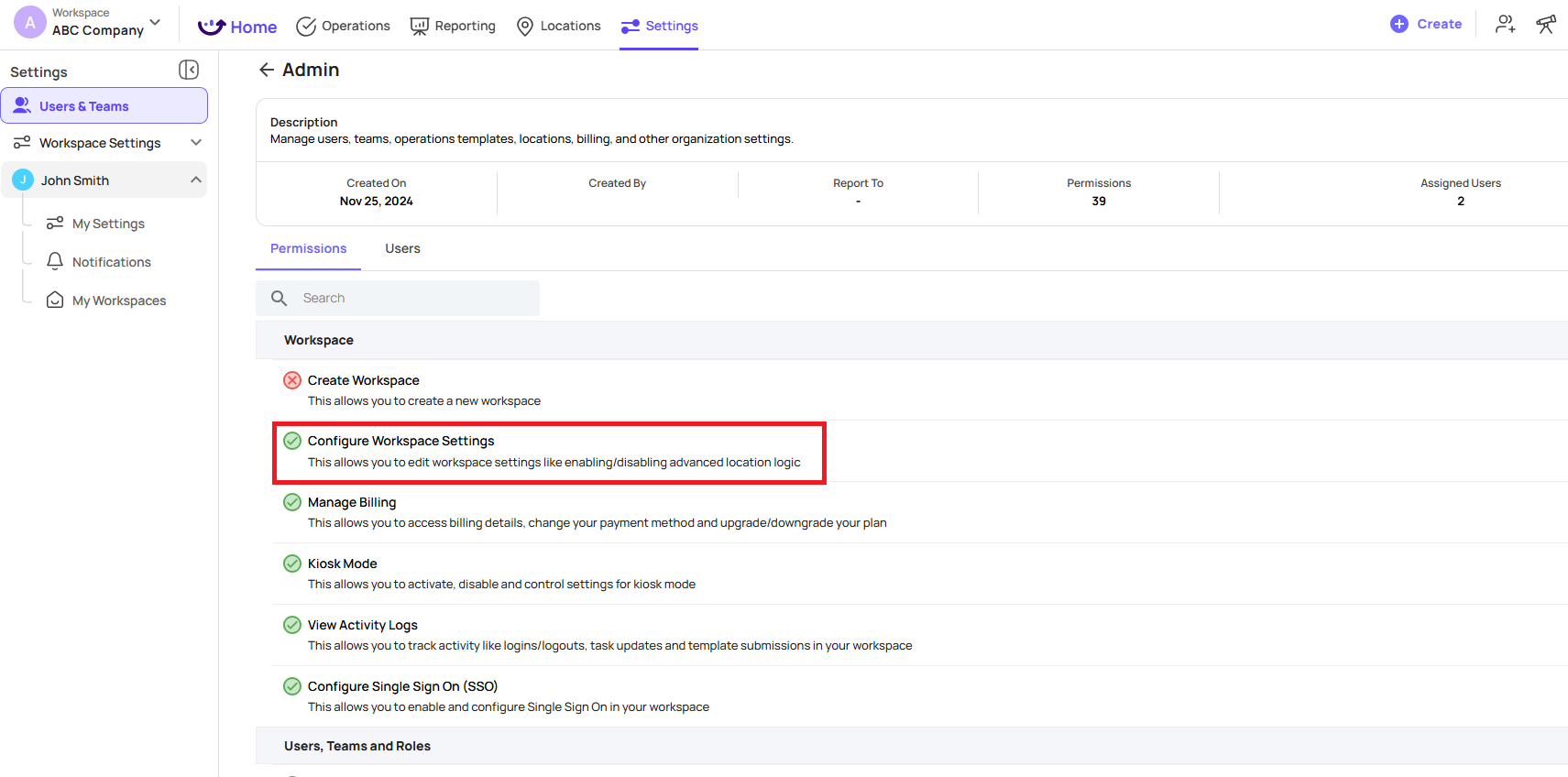
If your Account/Role has access to the "Configure Workspace Settings" Permission you will be able to modify your Workspace's timezone
Follow this video guide below to update your Workspace's timezone
Location/Site Timezone
Check out this article here on how to update an individual Location's timezone: Edit a Location's Details (Site Level, Address/Timezone)