Reviewing and Approving a Submission on Mobile
Last updated: October 19, 2026
This article explains how to review and approve submissions using your mobile device. You will learn the steps to manage pending approvals and provide feedback effectively.
1. Opening Review Mode
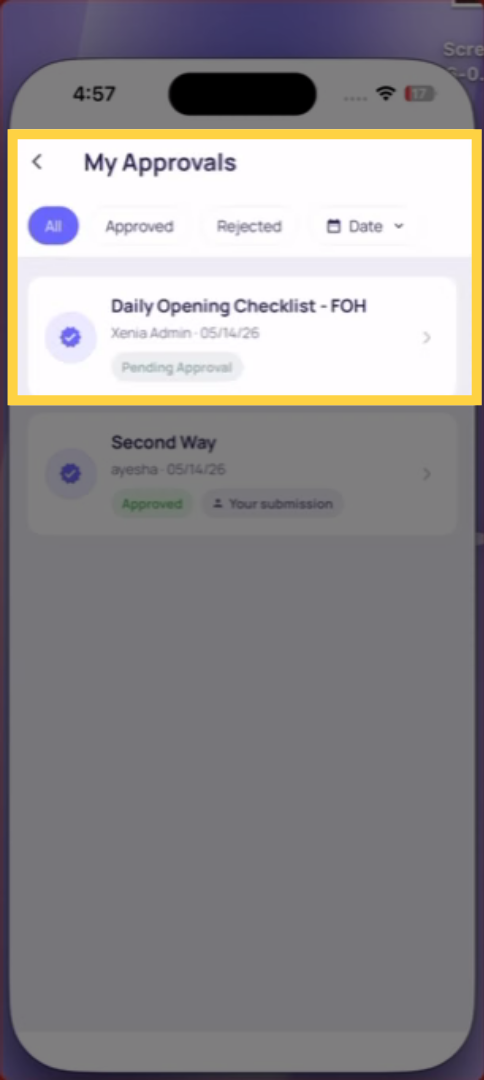
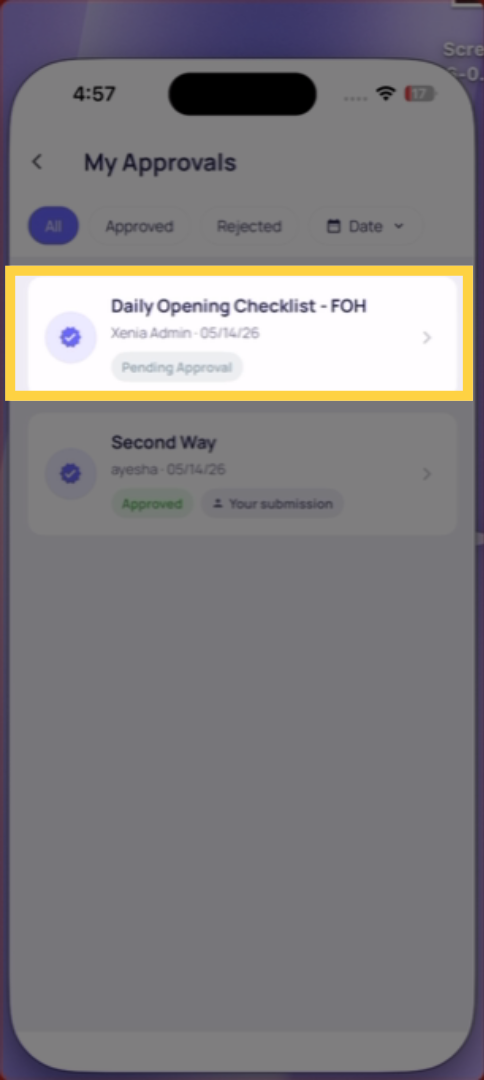
From a push notification, the Approvals tab, or the submission inbox — tap the pending submission. The Review Mode screen opens.
2. The Three Tabs in Review Mode
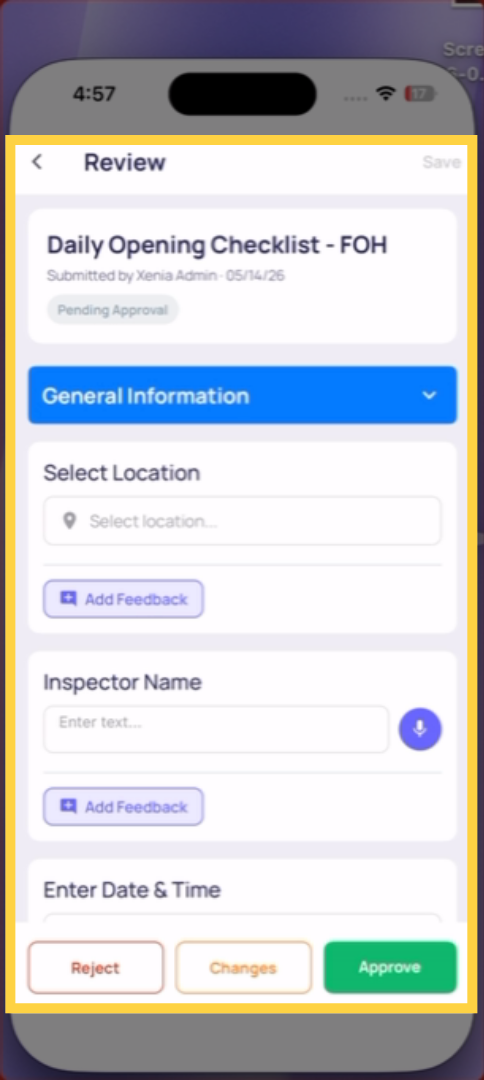
Submission tab: The full checklist — every question and every answer, in order. Scroll through to review all responses. Tap into any step to leave step-level feedback or a comment if needed.
Feedback Only tab: A filtered view showing only the steps that have feedback attached — useful when reviewing a submission after requesting changes, so you can quickly see what was addressed.
Photos tab: All photos from the submission in one scrollable gallery. Tap any photo for a full-size view.
3. Leaving Step-Level Feedback
If a specific answer is incorrect, incomplete, or needs clarification, you can leave feedback directly on that step:
Tap the step in the Submission tab
Type your feedback comment on that step
Continue reviewing the rest of the submission
Your step-level comments are saved and visible to the submitter when you request changes
Step-level feedback appears in the submission report and in the PDF.
4. How to Approve
When you're satisfied the submission is accurate and complete:
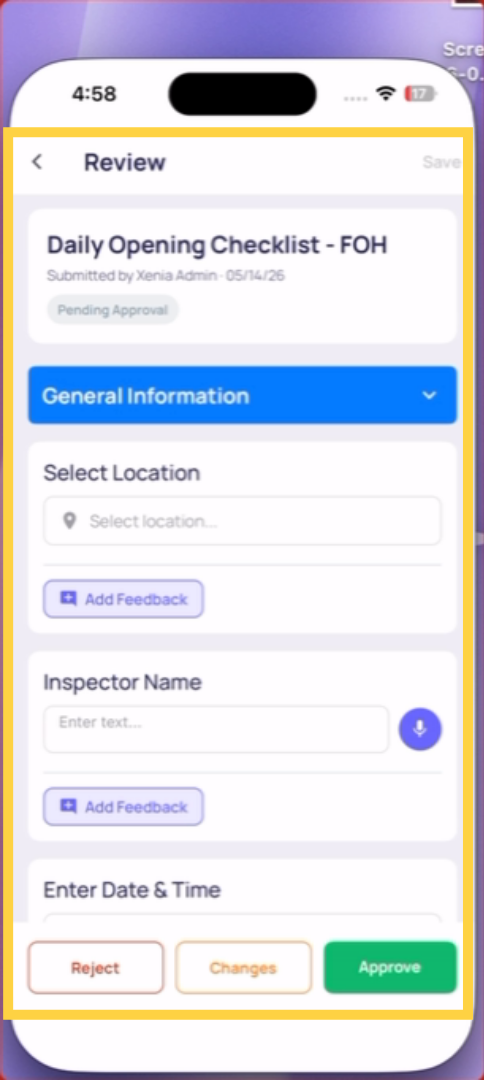
Tap the Approve button in the upper right corner of the Review Mode screen
A message pop-up appears — approval message is optional, type one if you want to add context
Confirm the approval
The submitter receives a push notification and email that their submission has been approved. If this is a multi-layer approval workflow, the next approver is notified automatically.
Approval Is Location-Scoped
You can only approve submissions from locations in your membership. If a submission is from Store 12 and you're the District Manager for Stores 1–5, you won't see it or be asked to approve it. This is intentional — the right approver for each location handles that location's submissions.

This article guides you through reviewing and approving submissions on your mobile device. You learned how to access pending submissions, navigate review tabs, leave comments, and confirm approvals efficiently.
Need Help?
Reach out to our Support Team at Support@xenia.team