Completing a Task vs. Completing an Ad-Hoc Checklist: What's the Difference?
Last updated: October 19, 2026
This article explains how to complete checklists in Xenia using two different methods. You will learn how to efficiently submit tasks either from your home screen or through templates, ensuring proper tracking and routing.
1. Two Ways to Complete a Checklist
There are two ways to fill out a checklist in Xenia on mobile. They use the same form, but they start differently and create different records.
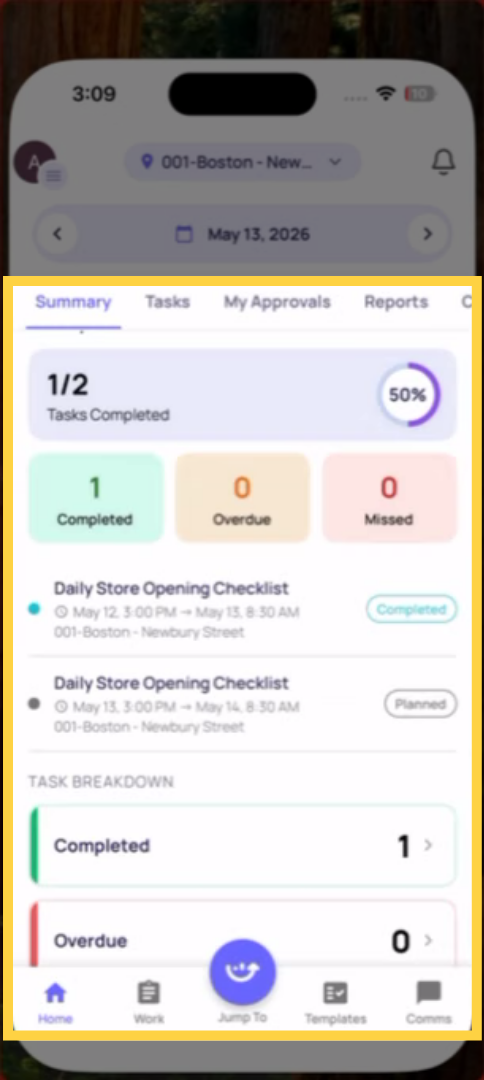
2. Path 1 — Completing a Task (Project-Generated)
This is the standard daily workflow. A project has been set up by your admin to deploy a checklist to your role at your location on a schedule. At the configured start time, a task appears on your home screen. You tap it, tap Start, complete the checklist, and submit.
What's different:
The task was assigned to you automatically by the project
The task has a start time and a due time — it's on a deadline
The Location step is pre-filled automatically — you don't select your store
Completing the task generates a submission AND marks the task as Completed
If you don't complete it by the due time, it becomes Overdue or Missed
The task appears in project completion reporting — your manager can see whether it was done on time, late, or not at all
When to use: Your daily operational checklists — opening procedures, temperature logs, cleaning verifications, weekly store walks. Anything your admin has scheduled for you.
3. Path 2 — Completing an Ad-Hoc Checklist (Templates Tab)
This is the on-demand path. You open the Templates tab, find a form, and start a new submission without any task assigned to you. There's no due time, no pre-filled location, and no project tracking it.
How to do it:
Tap the Templates tab at the bottom of the screen
Tap My Templates
Browse the folders or search for the form you need
Tap the form → tap Start Submission
Fill in the Location step manually — select your store from the dropdown
Complete the checklist and submit
What's different:
No task — you're starting from scratch
No due time — no deadline tracking, no overdue status
You must manually select your location — it doesn't pre-fill
The submission is recorded in the template's submission history
It does NOT appear in project completion reporting (because there's no project)
Corrective tasks and notifications still fire if configured
When to use: Incident reports, vendor issue forms, work requests, customer feedback forms, or any form that's completed when something happens — not on a fixed schedule.
4. Key Differences at a Glance
| Task (Project-Generated) | Ad-Hoc (Templates Tab) |
How it starts | Appears automatically on home screen | You open Templates and start it manually |
Location step | Pre-fills automatically | You select your store manually |
Deadline | Has a start and due time | No deadline |
Overdue/Missed tracking | Yes | No |
Project completion reporting | Yes | No |
Submission history | Yes | Yes |
Workflows/notifications fire | Yes | Yes |
This article explains how to complete checklists in Xenia using two methods: from assigned tasks on your home screen or via templates on demand. It highlights the importance of the location step for accurate submission routing and task tracking.
Need Help?
Reach out to our Support Team at Support@xenia.team