Updating a Work Order Status on Mobile
Last updated: October 19, 2026
This article explains the importance of keeping your work order status up to date. You will learn how to update statuses and add comments to ensure clear communication and accurate records.
1. Why Updating Status Matters
Status is how everyone tracking this Work Order — your manager, the facilities coordinator, the store that reported the issue — knows where things stand. A Work Order sitting at Open two days after you started the repair doesn't tell anyone anything useful. Keeping status current keeps the board accurate and prevents unnecessary follow-up calls.
2. How to Update Status on Mobile
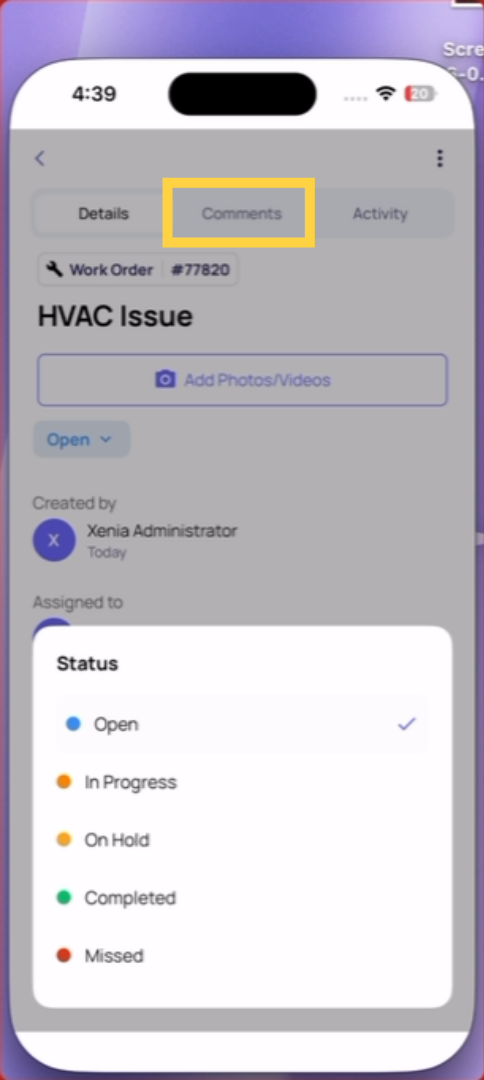
Open the Work Order from the Work tab → Work Orders Find the Status field in the Work Order detail view Tap the status to change it Select the new status from the options:
Open → you're starting: change to In Progress
In Progress → you're waiting on a part or vendor: change to On Hold
In Progress / On Hold → work is done: change to Completed
Add a comment explaining the status change — especially when moving to On Hold or Completed Save
3. Adding a Comment When You Update
When you update status, always add a comment. Good comments give context:
Moving to On Hold: "Waiting for replacement compressor belt — ETA Thursday from supplier"
Moving to Completed: "Replaced seal on walk-in door. Door now closing flush. Tested three times — no gap. Photos attached."
A Work Order with a status and a clear comment is a useful maintenance record. One with just a status change is just a number.
Attaching Completion Photos
When marking a Work Order Completed, attach a photo showing the resolved condition. Same principle as checklist photos — a clear, close image of the repaired or restored item. This becomes part of the asset's permanent work history.
This article explains how to keep your work order status updated, change statuses appropriately, and add detailed comments to maintain a clear repair record. For more information, see related work order management articles.
Need Help?
Reach out to our Support Team at Support@xenia.team