Start & Submit an Adhoc Submission
Last updated: October 19, 2026
What Is an Ad Hoc Submission?
An ad hoc submission is a checklist or form you start on your own — not from a scheduled project task on your home screen. You go to the Templates tab, find the form you need, and open it directly.
Common examples:
Inspection or audit form — a manager or field rep conducting an unscheduled visit or spot check
HR employee form — an employee or manager submitting a performance notice, incident report, or onboarding form
Incident report — documenting an issue that happened outside of a scheduled check
Any form that needs to be submitted on demand, not on a recurring schedule
Watch the Full Walkthrough
Step 1 — Go to the Templates Tab
From anywhere in the Xenia app, tap the Templates tab in the bottom navigation bar — it looks like a checklist icon.
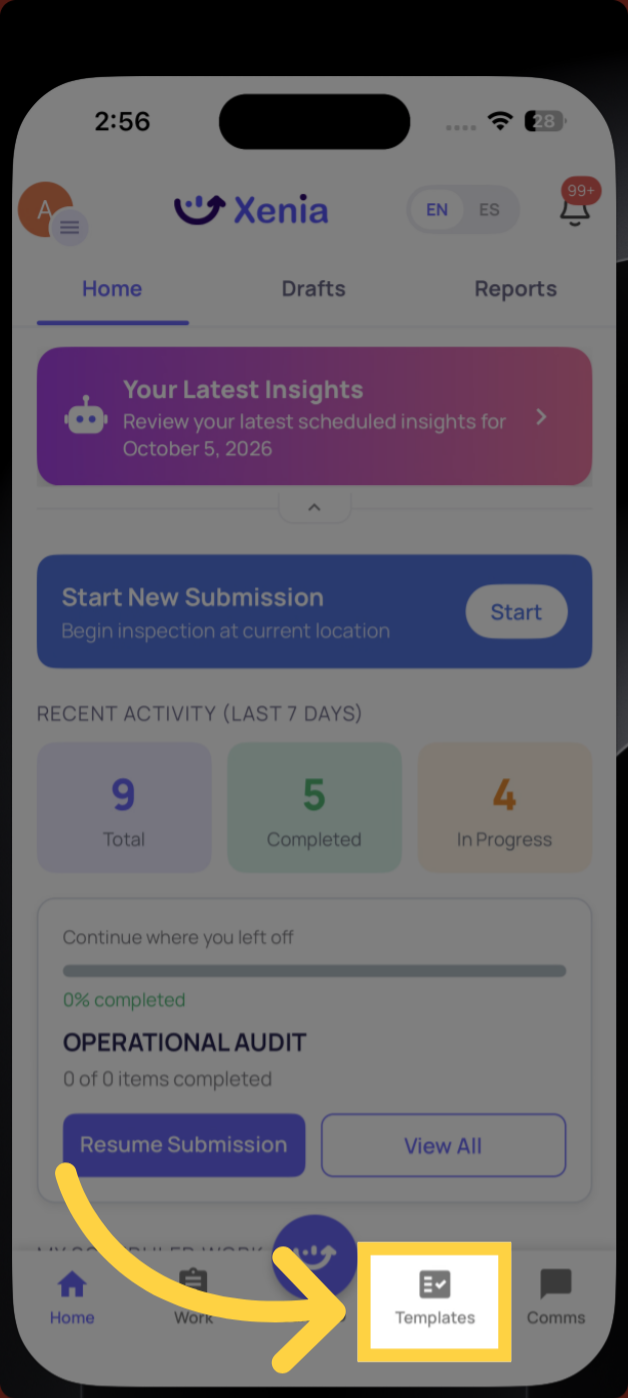
You'll see a list of all templates your role has access to. Templates are organized into folders if your admin has set them up that way.
Step 2 — Find the Template You Need
Browse or search for the form you want to submit. Tap the search bar at the top and type the name of the template — or scroll through the folder list to find it.
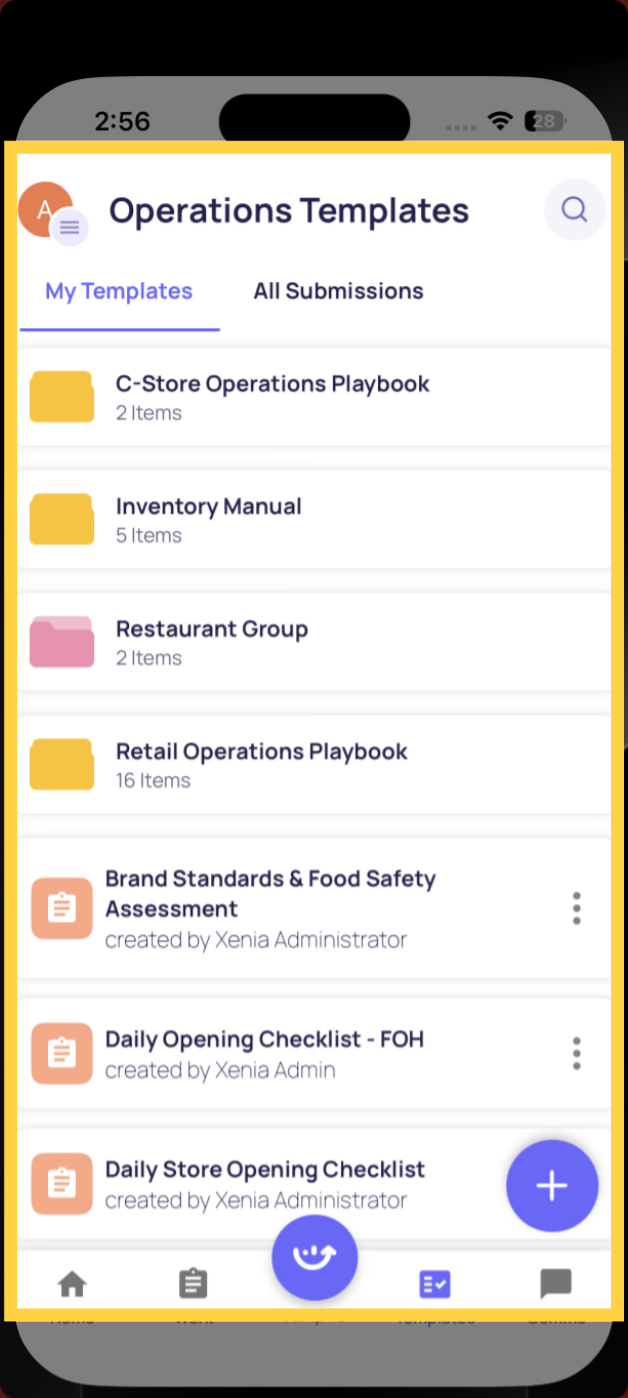
Tap the template name to open it.
Step 3 — The Form Opens Ready to Complete
The template opens and you can start filling it in immediately. A few things to note:
If the template has a Select Location step, tap it and choose your location from the list. This is important — it tells Xenia which store this submission belongs to and powers notifications, reporting, and any corrective tasks that may be triggered.
The progress bar at the top tracks your completion as you go.
Work through the steps from top to bottom.

Step 4 — Complete Each Step
Different step types work differently:
Pass / Fail or Yes / No
Tap your answer. If you select Fail or No, a follow-up question may appear — answer it before you can move on.

Multiple Choice
Tap the correct option.
Text or Number
Tap the field and type your response.
Photo
Tap the camera icon to take a live photo. Required photo steps cannot be skipped — the form will not let you submit without them.
Signature (if applicable)
Draw your signature in the signature field.
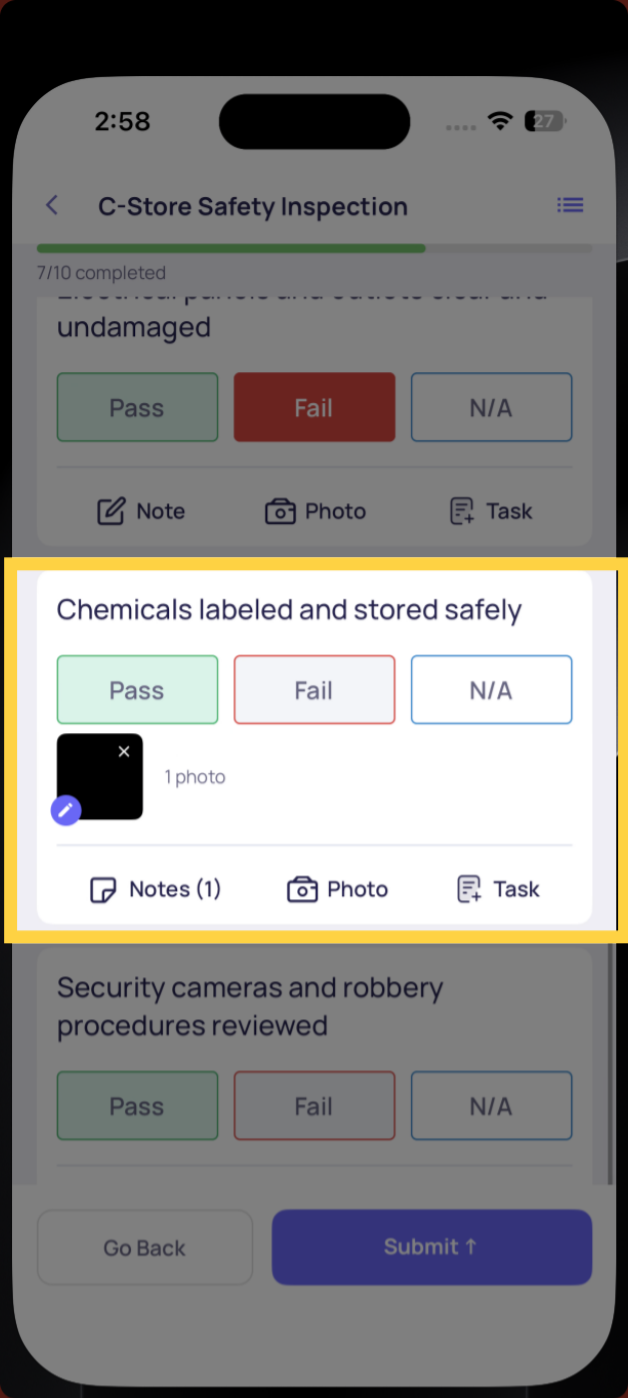
The progress bar advances as you complete each step.
Step 5 — Review and Submit
Once all required steps are completed, the Submit button at the bottom becomes active.

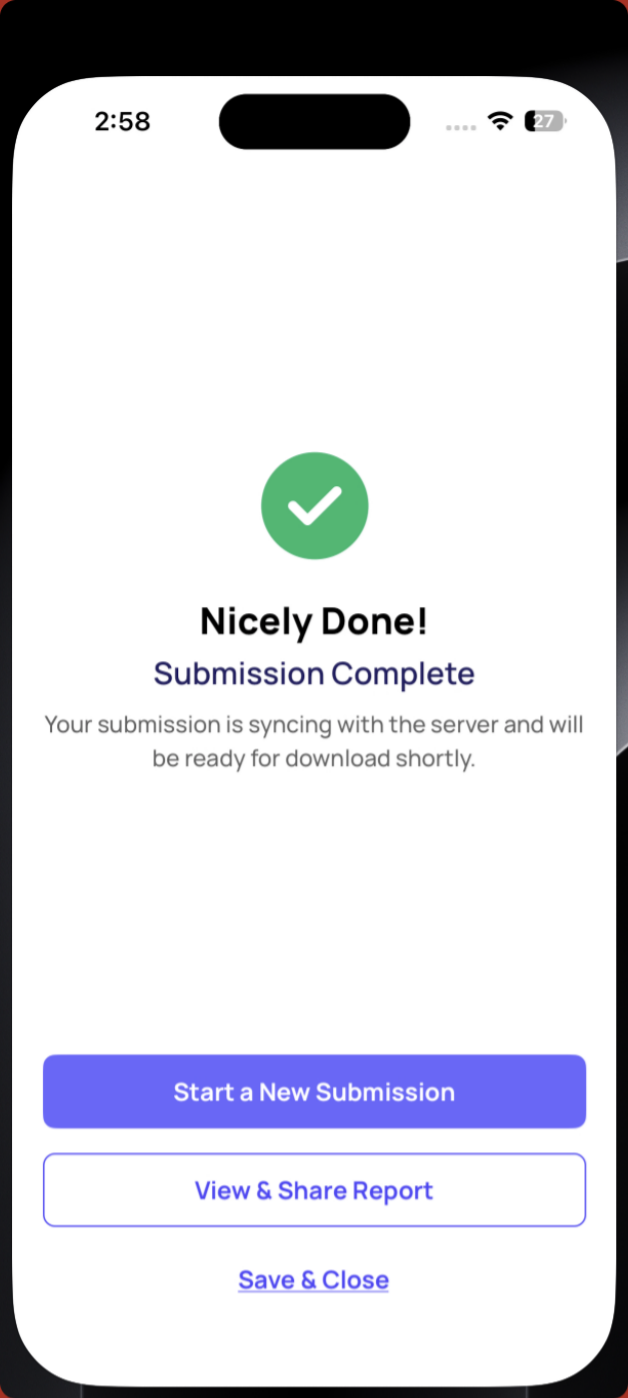
Tap Submit. A confirmation screen confirms your submission has been recorded.
Step 6 — What Happens After You Submit
The submission is immediately visible to anyone with access to view submissions for this template
If the template has post-submission email notifications configured, the relevant managers or roles receive an email report
If any step triggered a corrective task or workflow, those fire automatically at the moment of submission
If the template has an approval workflow, the form enters the approval queue and the designated approver is notified
Frequently Asked Questions
Q: What's the difference between an ad hoc submission and a project task?
A project task is generated automatically by a schedule — it appears on your home screen at the right time. An ad hoc submission is one you start yourself from the Templates tab whenever you need it, with no schedule attached.
Q: Why can't I find the template I'm looking for?
You can only see templates your role has been granted access to. If a template isn't showing up, contact your admin to confirm you have Template Access for that form.
Q: Do I have to select a location every time?
Only if the template has a Select Location step. If it does, always fill it in — it's what connects the submission to the right store in reporting and notifications.
Q: I started filling out the form but had to stop. Will my progress be saved?
Yes — if you exit mid-completion, your progress auto-saves. Find it under My Draft Submissions in the side menu (tap your profile icon → My Draft Submissions).
Q: Can I submit a form on behalf of someone else?
No — submissions are attributed to the logged-in user. Each person should submit forms from their own account.
Need Help?
Reach out to our Support Team at Support@xenia.team