Connecting Xenia Data to Power BI
Last updated: October 19, 2026
📌 Before you start
This article covers connecting Xenia data to Power BI using the Xenia API. You may also need:
Overview
Xenia exposes a JSON API that Power BI's built-in Web connector can call directly using your API key and secret — sent as request headers. No middleware, no custom connector, no third-party tool required.
What you can pull into Power BI:
Submission records from checklists and forms
Task and work order data
Pre-aggregated reporting analytics (completion rates, compliance, flagged items)
Grid report exports
Before You Begin
You will need:
Requirement | Notes |
|---|---|
Public API enabled on your workspace | This is an add-on capability. If you don't see Settings → Public Integrations in Xenia, contact your Xenia representative to have it enabled. |
Workspace Owner access | Creating API keys requires the Manage API Access Keys permission, granted to Owners by default. |
Power BI Desktop | Free from Microsoft. This is where you build the connection and report. Scheduled refresh via the Power BI Service is optional. |
Key things to know:
One key = one workspace. Each API key is permanently tied to the workspace it was created in.
The key acts as a specific user. The data it can access is governed by that user's role and location membership. Create a dedicated integration user with full location access for complete data.
Credentials are shown once. The client secret displays a single time on creation — save it immediately in a secure location. It cannot be retrieved later.
Step 1 — Create Your API Credentials
In the Xenia web app, go to Settings → Public Integrations
Create a dedicated integration user — e.g.
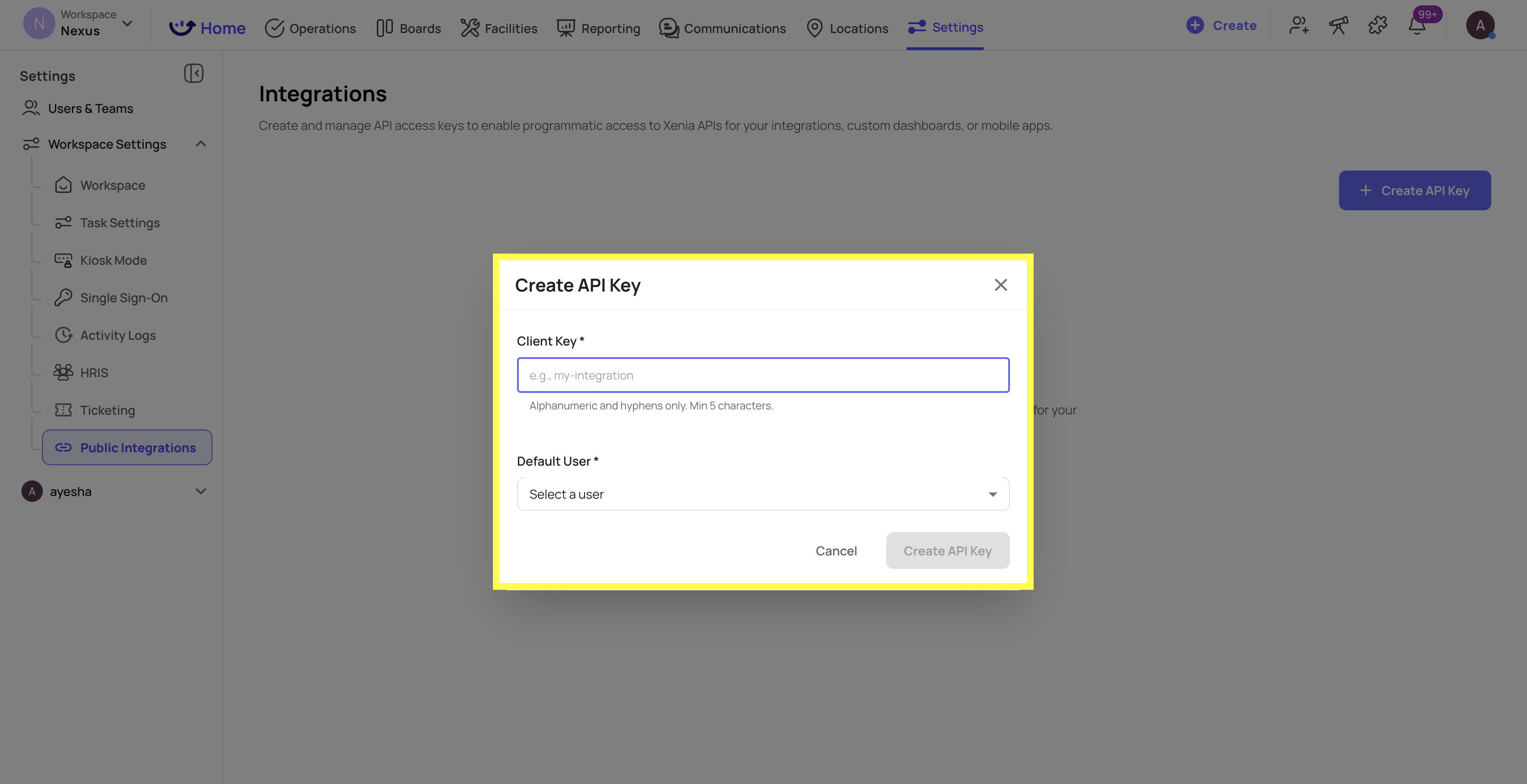
powerbi-integration@yourcompany.com— with an Admin or Owner-level role and membership at all locations you want in Power BIIn Public Integrations, click to create a new API key:
Enter a client key — an identifier of your choosing (letters, numbers, hyphens; minimum 5 characters), e.g.
powerbi-reporting. This is yourx-client-key.Choose the integration user as the default user the key will act as
When created, Xenia generates and displays the client secret once — copy it now and store it securely. This is your
x-client-secret.
You'll also need your Workspace ID for task/work order endpoints — it's the UUID in your Xenia web address bar (app.xenia.team/workspace/**
**/...
).

Step 2 — Verify Your Credentials (Recommended)
Before opening Power BI, confirm the credentials work with a quick command-line test:
bash
curl -X POST "https://api.xenia.team/api/v1/ops/template-submissions" \
  -H "x-client-key: YOUR_CLIENT_KEY" \
  -H "x-client-secret: YOUR_CLIENT_SECRET" \
  -H "Content-Type: application/json" \
  -d '{"fromDate":"2026-01-01","toDate":"2026-01-31","limit":5}'
JSON response with a
dataarray → credentials are working401 Invalid client credentials→ key or secret is wrong403 Forbidden: API key not authorized for this route→ check the URL path for typos
Key Facts About the API
Item | Detail |
|---|---|
Production base URL |
|
Authentication | Two headers on every call: |
Format | JSON request bodies and JSON responses |
Workspace scope | Determined automatically by the key |
Request timeout | ~60 seconds (server-side). Always scope queries with date ranges — aim for under 55 seconds. |
Available Data Endpoints
All endpoints use base URL https://api.xenia.team/api/v1.
Submission Data
What you get | Method & Path | Requires |
|---|---|---|
Submission records (with answered items) |
| Valid key + workspace |
Submission counts by status |
| Valid key + workspace |
/ops/template-submissions request body (all optional): fromDate, toDate, checklists, statuses, locations, users, searchText, offset, limit, includeItems (set false for lighter payloads without per-question detail).
Task & Work Order Data (replace {workspaceId} with your Workspace ID)
What you get | Method & Path | Requires |
|---|---|---|
Task/work order list (filtered) |
| View Tasks or View Work Orders |
Task catalog (list + counts) |
| View Tasks or View Work Orders |
Single task details |
| Valid key (task must be visible to user) |
Reporting Analytics (all POST, all require View Reporting capability)
What you get | Path |
|---|---|
Task count by status |
|
Task count by assignee |
|
Task count by category |
|
Weekly completion |
|
Schedule completion by location |
|
On-time vs. late submission by location |
|
Daily compliance |
|
Filter field names differ by endpoint — an unrecognized field name is silently ignored (no error, just unfiltered results). Match field names exactly from the endpoint documentation.
Grid Reports (requires Advanced Dashboards + View Reporting)
What you get | Method & Path |
|---|---|
List saved grid reports |
|
Export a grid report view |
|
Note: the spreadsheet endpoint returns an Excel file, not JSON. For live/refreshable reporting, the JSON endpoints above are the better choice.
Step 3 — Connect from Power BI
Because the Xenia API uses custom headers (not a built-in Power BI auth type), set the connection's credential type to Anonymous — authentication travels in the headers themselves.
Store credentials as parameters (recommended)
In Power BI Desktop: Home → Transform data to open Power Query Editor
Manage Parameters → New Parameter. Create two Text parameters:
ClientKey— paste your client keyClientSecret— paste your client secret
Optionally create a
WorkspaceIdparameter
Example A — Submission records (most common)
powerquery
let
    BaseUrl = "https://api.xenia.team",
    Body = Json.FromValue([
        fromDate = "2026-01-01",
        toDate = "2026-01-31",
        limit = 5000,
        offset = 0
    ]),
    Response = Web.Contents(
        BaseUrl,
        [
            RelativePath = "/api/v1/ops/template-submissions",
            Headers = [
                #"Content-Type" = "application/json",
                #"x-client-key" = ClientKey,
                #"x-client-secret" = ClientSecret
            ],
            Content = Body
        ]
    ),
    Parsed = Json.Document(Response),
    Rows = Parsed[data],
    Table = Table.FromList(Rows, Splitter.SplitByNothing(), {"Submission"})
in
    Table
When prompted for credentials, choose Anonymous and Connect. Then expand the column to flatten submission fields.
Example B — GET endpoint (list grid reports)
powerquery
let
    BaseUrl = "https://api.xenia.team",
    Response = Web.Contents(
        BaseUrl,
        [
            RelativePath = "/api/v1/mgt/grid-reports",
            Headers = [
                #"x-client-key" = ClientKey,
                #"x-client-secret" = ClientSecret
            ]
        ]
    ),
    Parsed = Json.Document(Response),
    Reports = Parsed[data][gridReports],
    Table = Table.FromList(Reports, Splitter.SplitByNothing(), {"Report"})
in
    Table
Example C — Task list (POST, Workspace ID in path)
powerquery
let
    BaseUrl = "https://api.xenia.team",
    Body = Json.FromValue([]),
    Response = Web.Contents(
        BaseUrl,
        [
            RelativePath = "/api/v1/ops/workspaces/" & WorkspaceId & "/tasks/list",
            Headers = [
                #"Content-Type" = "application/json",
                #"x-client-key" = ClientKey,
                #"x-client-secret" = ClientSecret
            ],
            Content = Body
        ]
    ),
    Parsed = Json.Document(Response),
    Rows = Parsed[data][rows],
    Table = Table.FromList(Rows, Splitter.SplitByNothing(), {"Task"})
in
    Table
Handling keyed-object responses
Some endpoints (e.g. count-by-status) return data as an object keyed by status rather than an array. Convert with Record.ToTable:
powerquery
let
    ...
    Parsed = Json.Document(Response),
    AsTable = Record.ToTable(Parsed[data])  // columns: Name (status), Value (record with count)
in
    AsTable
Scheduled Refresh in the Power BI Service
Publish your report to the Power BI Service
Open the dataset's Settings → Data source credentials
Edit credentials → set authentication method to Anonymous
Configure Scheduled refresh as normal
Important: Always use BaseUrl + RelativePath (as shown in examples) rather than a fully dynamic URL. A dynamic URL is a common cause of Service refresh failures.
Security note: Because authentication is via headers, your client secret is stored inside the dataset definition. Treat the .pbix file and published dataset as sensitive. If a secret is ever exposed, create a new key in Public Integrations and delete the old one.
Working with Large Datasets
Always scope your pull with
fromDate/toDateor other filters so queries finish comfortably under the 60-second server timeoutPage with
offset/limit— request 5,000 records at a time fortemplate-submissions. Usemeta.totalCountto know when you've retrieved everythingUse
includeItems = falsefor submission-level data when you don't need per-question answers — significantly lighter payloadsDon't rely on a longer client timeout — the server cuts requests at ~60 seconds regardless of Power BI's setting
Troubleshooting
Symptom | Likely Cause | Fix |
|---|---|---|
| Wrong key/secret, or key deactivated | Re-check values; create a new key if needed |
| Workspace ID in URL doesn't match the key's workspace | Use the correct Workspace ID |
| Path/method isn't API-key-enabled, or typo | Match path exactly against the endpoint list |
Permission error despite valid key | Integration user lacks required permission (View Reporting, Advanced Dashboards) | Grant the needed role/capability to the integration user |
504 / request times out | Query exceeded ~60s server limit | Narrow date range, add filters, or page results |
Scheduled refresh fails in Service | Fully dynamic URL, or credentials not set to Anonymous | Use |
What's Not Available Through This API
No OData feed and no dedicated Xenia Power BI connector — use the generic Web connector as described here
No single "export everything" endpoint — pull the datasets you need from the specific endpoints above
Computed grid report cells are only available as the Excel export (no JSON endpoint for rendered grid via API key)
For help enabling the Public API on your workspace or questions about access, contact your Xenia representative or reach out at support@xenia.team.