How to Use Bulk User Invites via Sample CSV
Last updated: October 19, 2026
Bulk user invites allow you to quickly add multiple users to Xenia at once using a CSV file. This is especially helpful when onboarding new teams or launching a new location.
When to Use Bulk Invites
Use bulk invites if you need to:
Add many users at the same time
Onboard staff for a new site or store
Save time instead of sending individual invitations
Step 1: Download the Sample CSV
Go to Settings in your Xenia dashboard.
Navigate to Users.
Click Bulk Invite.
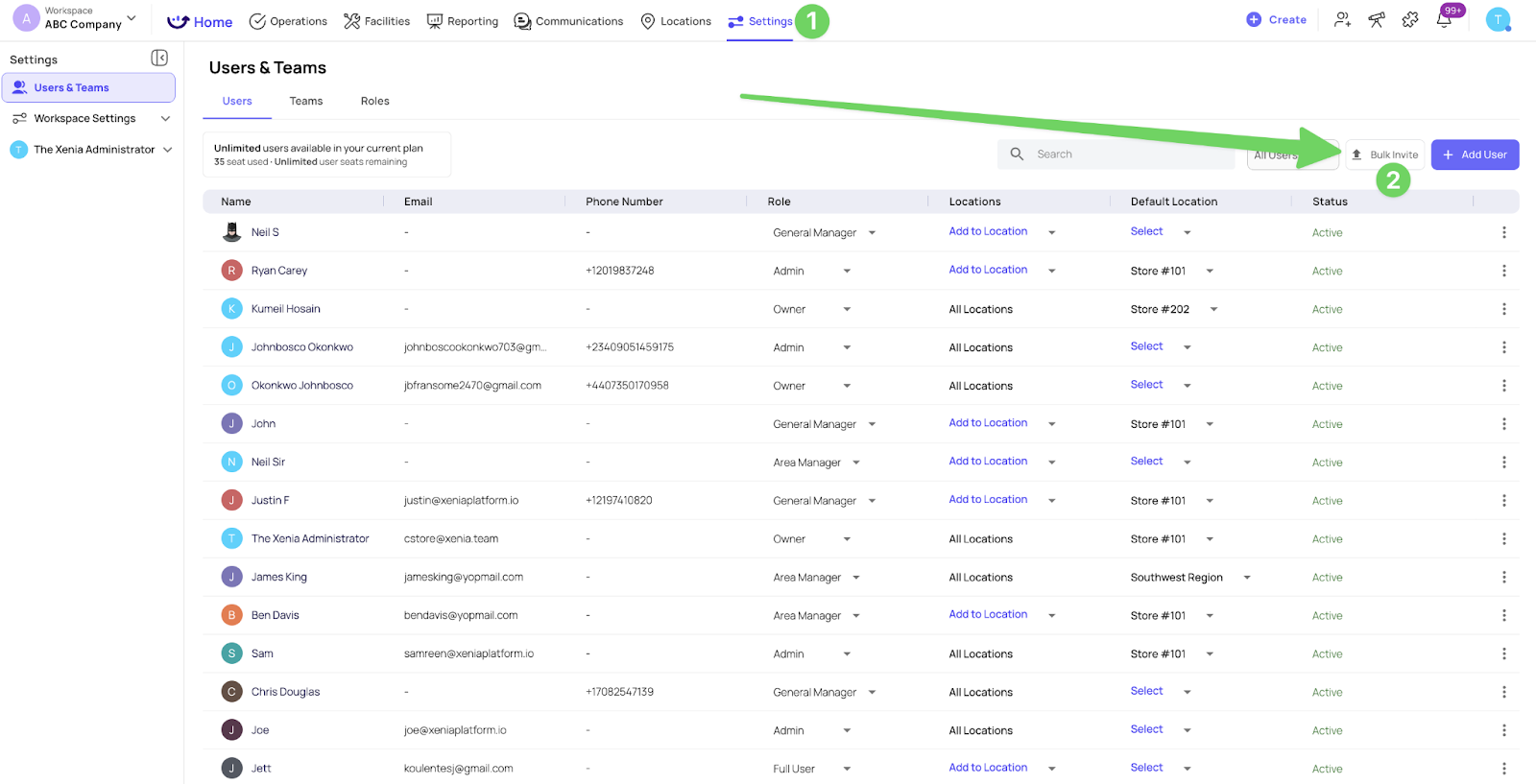
Download the sample CSV file provided.
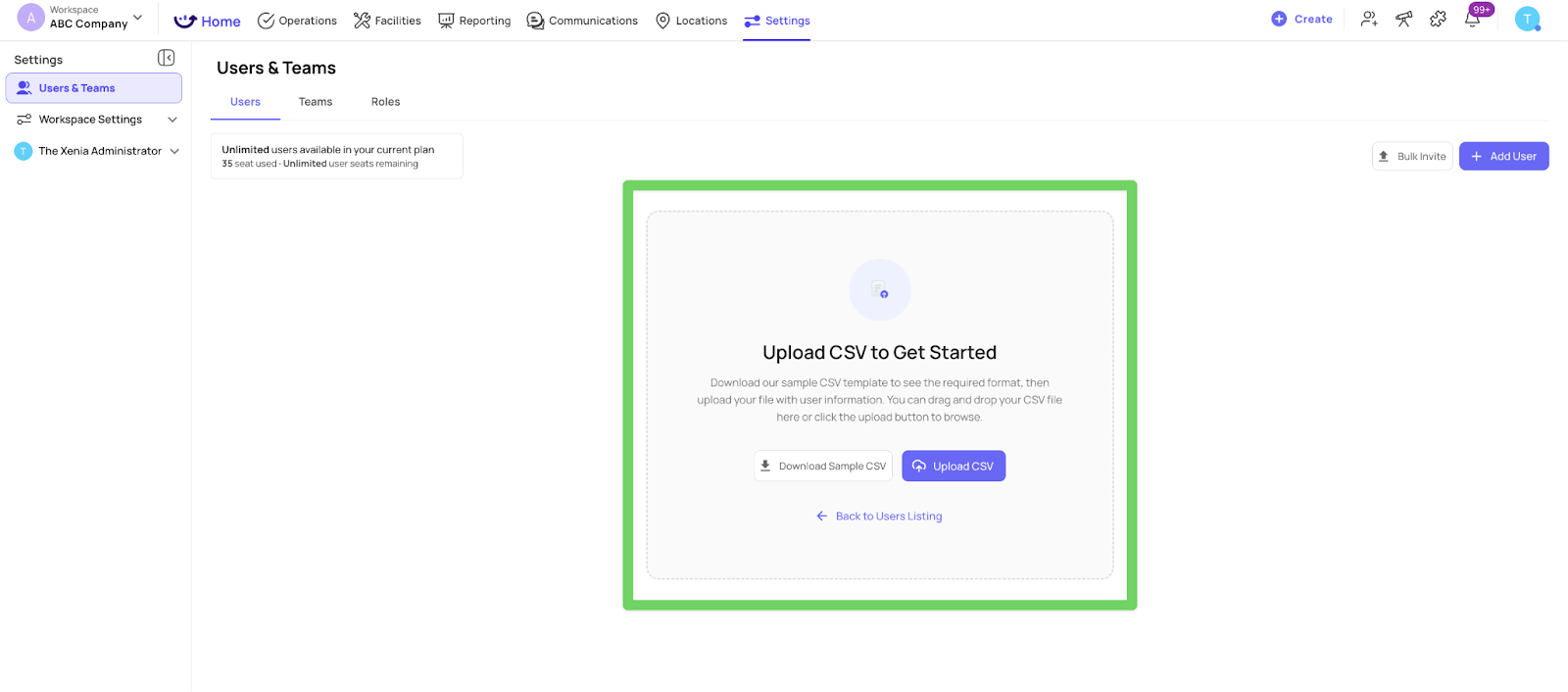
The sample CSV contains the correct column format required for a successful upload.
Step 2: Fill Out the CSV File
Open the CSV file and enter user details in each row. Typical fields include:
Name
Email address
Phone Number
Role
Location
Password
Important tips:
Do not change column headers.
Ensure email addresses and phone numbers are valid.
Each row should represent one user.
Step 3: Upload the Completed CSV
Return to the Bulk Invite Users section.
Upload your completed CSV file.
Review the preview to confirm user details are correct.
Click Send Invites.
Once uploaded, Xenia will automatically send invitation emails or SMS messages to each user.
Step 4: User Accepts the Invite
Invited users will receive a link to:
Set their password
Access Xenia on web or mobile
After acceptance, users will appear in your user list and can be added to teams and projects.
Common Errors to Avoid
Missing required fields in the CSV
Incorrect email or phone number formats
Changing or deleting column headers
Assigning roles that exceed your account permissions
If there’s an issue with the upload, Xenia will notify you so you can correct and re-upload the file.
Watch Video for Configuration:
Need Help?
If you run into any issues or have questions about bulk user invites, reach out to the Xenia support team at support@xenia.team or your Implementation Specialist for assistance.